
How to Avoid False Alarms with Safety Apps: A Practical Guide
What if the best way to reduce false alarms isn’t turning alerts off, but making your safety routine clearer? Unnecessary notifications can be stressful, and too many may make it harder to trust an alert that needs attention. Learning how to avoid false alarms with safety apps starts with a reliable setup, not fewer safeguards.
A missed check-in can mean someone forgot, but it can also point to a phone setting or connection issue. It’s understandable to wonder what happened and what to do next. The goal is to make alerts easier to interpret while keeping safety choices in your hands.
This guide explains how to review app permissions and notification settings, account for connectivity, and establish a check-in routine that works in everyday life. You’ll also learn how to agree on response steps with trusted contacts, so everyone knows what to check when an alert seems incorrect. Small, consistent habits can help keep important notifications meaningful without adding unnecessary worry.
Key Takeaways
- Learn how to avoid false alarms with safety apps by distinguishing an incorrect alert from one caused by a missed check-in or an unavailable phone.
- Use an ordered setup checklist to review your routine, app settings, trusted contacts, and notification testing.
- Compare apps by what triggers alerts, how much control you have, how contacts are notified, and how clearly privacy is explained.
- Agree on check-in timing and next steps with your contacts so an alert has a clear context and response.
- See how scheduled Proof of Life check-ins and missed-check-in notifications can support a predictable routine.
How to Avoid False Alarms with Safety Apps: Understand What an Alert Means
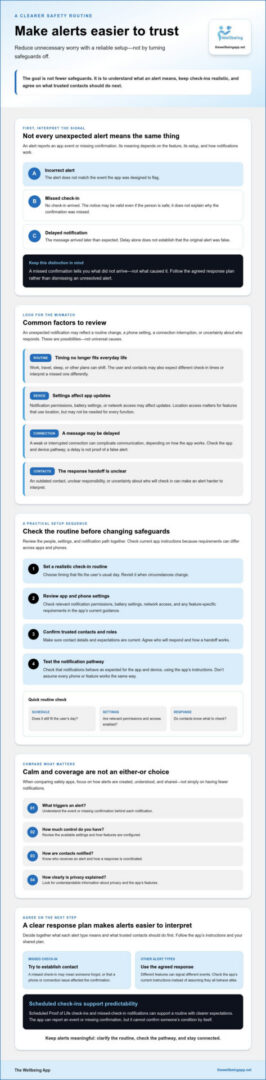
Before changing settings, identify what an alert is meant to tell you. A safety app may notify someone about a missed check-in, an emergency alert, or another event tied to a feature. The meaning depends on the feature, how it was set up, and how its notifications work. Don’t assume every alert reports an emergency or that every unexpected notification is an error.
A false alarm is an alert that doesn’t reflect the situation the app was designed to flag. A missed-check-in alert can be valid even when the person is safe, because it reports that no check-in was received, not what caused the missed confirmation.
False alarm, missed check-in, or delayed notification?
These situations are different. An incorrect alert doesn’t match the event it was intended to report. A missed-check-in alert may accurately indicate that a check-in didn’t arrive, while leaving the reason unknown. A delayed notification means the message reached a user or contact later than expected. That delay alone doesn’t establish whether the original alert was false.
For example, someone may forget to check in while otherwise safe. The alert can still be a valid notice that the expected confirmation is missing. Follow the agreed response plan and try to establish contact rather than dismissing the alert as a mistake. For broader context on what commonly triggers false alarms and why repeated alerts can affect trust, see the overview on Wikipedia.
Why fewer alerts should not mean ignoring alerts
Repeated notifications that don’t match what’s happening can be tiring and may make people less attentive over time. But not every alert can or should be avoided: some flag missing information that deserves a check. The aim of how to avoid false alarms with safety apps is to make notifications understandable and useful, not to silence them indiscriminately.
Agree with trusted contacts on what each alert type means and what they should do first. A missed check-in might call for contacting the person; a different alert may require a different response, depending on the app and your plan. Check the app’s current instructions rather than assuming all features behave alike.
An app can support a shared safety plan, but it can’t confirm someone’s condition by itself. An alert provides information about an app event or a missing confirmation. People still need to interpret that information, check in with one another, and decide what to do next. Clear expectations help preserve calm without treating an unresolved alert as proof that everything is fine.
What Commonly Triggers False Alarms in Safety Apps?
An unexpected alert doesn’t always point to a faulty app. It may reflect a routine that no longer fits, a phone setting, a connection interruption, or confusion about who should respond. These are possibilities, not universal causes: app design, device settings, and the notification pathway can all affect what a user or contact sees. Before changing settings or switching off notifications, look for the source of the mismatch.
Routine and check-in timing problems
A check-in schedule can become difficult to follow when work, travel, sleep, or other plans shift. Users and contacts may also have different expectations about when a check-in is due or what a missed one means. Choose realistic check-in times that fit the user’s usual routine, and agree on what contacts should do if one is missed. If the app supports updating contacts or plans, make changes when circumstances change.
Phone settings, connectivity, and notifications
On some devices, notification permissions, battery settings, or network access may affect whether an app can send or receive updates as expected. Location access may matter for features that use location, but it isn’t necessarily required for every safety-app function. Check the app’s current instructions for its specific requirements, and use your device’s settings to confirm relevant access is enabled. Don’t assume the same steps or behavior apply across phones and apps.
Connectivity can also complicate interpretation. A weak or interrupted connection may affect communication, depending on how the app works. A notification that arrives late is a reason to check the app and device pathway, not proof by itself that the original alert was incorrect. For general technical reference, consult standard mobile device troubleshooting guides, then confirm any technical advice against the app’s own guidance.
Contacts are part of the notification pathway, too. An outdated contact, an unclear handoff, or uncertainty about who will check in can make an alert harder to interpret. Before adjusting settings, use this quick review:
- Routine: Does the schedule still fit the user’s day?
- Phone: Are relevant notification, battery, and network settings enabled?
- Contacts: Are the designated people current and clear on what to do?
- Test: Can the user and trusted contacts confirm the setup works as expected?
Testing with trusted contacts can reveal gaps before they cause confusion. If scheduled check-ins suit your routine, explore The Wellbeing App check-ins as one way to organize them. Understanding how to avoid false alarms with safety apps starts with checking the routine and notification pathway before reducing alerts.
How to Reduce False Alarms: A Safety-App Setup Checklist
A careful setup can make alerts easier to understand without removing safeguards. Work through these steps in order, and use the app’s current instructions for feature-specific controls. Settings and workflows vary, so don’t assume a control available in one app or device works the same way in another.
Set a check-in plan people can realistically follow
Choose check-in times that fit the user’s normal activities and comfort level. A schedule that regularly conflicts with work, sleep, or travel may be harder to maintain. Tell designated contacts what a missed check-in means and agree on what they should do first. Revisit the plan if routines change, a device is replaced, or a contact is no longer available.
Review permissions and test the complete alert path
Check the phone’s notification permissions and any other access the app says its features need. Then confirm that designated contacts know how they’ll receive an alert and what response is expected. Follow the app’s supported process for a low-stakes test, and let contacts know in advance so the test isn’t mistaken for a genuine concern.
- Confirm the routine. Check that the schedule still reflects the user’s day and that everyone understands when a check-in is expected.
- Review app and phone settings. Follow current app guidance to verify notifications and relevant permissions. Review device settings that could affect notifications, such as battery controls, without changing controls you don’t understand.
- Verify contacts. Make sure designated contacts are current and know what to do if an alert arrives. If the app provides contact-management options, check them using its instructions.
- Test notifications. Use the app’s recommended test procedure and confirm with contacts whether the expected notification reached them. If something doesn’t work, troubleshoot before relying on that setup.
Consistent check-ins give contacts a clearer reference point for interpreting a missed confirmation. That doesn’t mean every missed check-in is an emergency or that an alert can be dismissed without checking. It means the user and contacts have a shared routine to help them decide what to do next.
If notifications seem inconvenient, resist the urge to disable essential alerts just to quiet the phone. First look for a mismatch in timing, permissions, contact details, or the way the app is configured. When considering how to avoid false alarms with safety apps, the aim is to improve the routine and understand the alert pathway, not to weaken the plan. If the app’s instructions don’t clarify a setting, check its current support guidance before changing it.
How to Compare Safety Apps Without Choosing Between Calm and Coverage
A long feature list doesn’t tell you whether an app will fit your routine or help contacts understand an alert. Compare the details that shape everyday use: what triggers a notification, how much control users have, how contacts are involved, how the setup can be tested, and how clearly the app explains privacy. The goal is a tool people understand and feel comfortable using, not the one with the most features.
| What to compare | Questions to ask |
|---|---|
| Alert triggers | What event prompts each alert? Can users tell the difference between a missed check-in and another alert type? |
| User control | Can the user understand and manage the available check-in or notification controls? Are feature-specific options explained? |
| Contact workflow | How are designated contacts added, informed, and updated? What are they expected to do when an alert arrives? |
| Testing guidance | Does the app explain how to test the notification path safely, including what contacts should expect? |
| Privacy clarity | What information is shared, with whom, and under what circumstances? Are location and check-in data explained clearly? |
Check alert controls and contact workflows
For scheduled check-ins, look for a clear explanation of when a check-in is expected and what a missed check-in means. Ask how contacts are managed and whether the app explains any available options for notification timing, retries, or escalation. Don’t assume those controls exist or work the same way across apps. Confirm details in current product instructions before relying on them.
Testing matters, too. A useful setup process should help you check that notifications reach the intended people, without treating a test alert as a real event. Clear instructions let the user and contacts agree on a response instead of guessing under pressure.
Consider privacy, consent, and confidence
Review what check-in or location information is shared and who can see it. Discuss boundaries with the person whose information is involved, including what sharing feels appropriate and what they expect contacts to do. Apps can handle data differently, so read each app’s own explanations rather than assuming one service’s practices apply to another.
Understandable alerts and transparent controls often matter more than feature counts. If people can’t tell why a notification appeared or who will receive it, extra features may add confusion instead of confidence. These practical questions can also guide how to avoid false alarms with safety apps, because they help reveal whether the app fits the user and the people supporting them.
To review a service with scheduled check-ins, location sharing, and emergency alerts, Explore The Wellbeing App’s safety features.
Build a Clear Response Plan with Safety-App Check-Ins
Good setup is only part of a dependable safety routine. The user and their trusted contacts also need a shared understanding of what a check-in means, who will respond, and what to do if nobody can confirm the person’s wellbeing. Keep the plan simple and agree on it together, so support feels clear without taking away the user’s independence.
Agree what happens after a missed check-in
Decide who will try to reach the user first and which method they’ll use, such as a call or message. Agree what that person should do if they don’t hear back, including whom to contact next and when the circumstances call for urgent help. These steps are for the people in the plan to follow. Don’t assume the app automatically contacts others in a particular order unless its current instructions confirm that workflow.
Make the plan easy to remember. For example, it could name a first contact, a backup contact, and the next step if the user remains unreachable. Discuss the approach with the user and respect their preferences about when and how contacts check in. If a message or other information suggests immediate danger, follow emergency procedures appropriate to the circumstances rather than relying on the app alone.
Keep the routine dependable as circumstances change
A plan that worked last month may need an update after a change in schedule, phone, or contact availability. Review check-in timing and contact details periodically with the user’s consent. After changing devices or installing a significant software update, recheck the app’s permissions and follow its current guidance to confirm the notification setup still suits the routine.
Proof of Life supports scheduled check-ins and can notify designated contacts when a scheduled check-in is missed. That can give the group a predictable starting point: the user knows when a check-in is expected, and contacts know a missed confirmation is a cue to follow the agreed plan, not proof of what happened. The feature can support coordination, but it can’t confirm someone’s condition or guarantee an outcome.
If a setting or alert behavior is unclear, check the app’s current support guidance rather than guessing. Revisit the plan whenever the people, devices, or routine change. This shared approach is a practical part of how to avoid false alarms with safety apps, while keeping important alerts worthy of attention.
For an overview of scheduled check-ins and alerts, learn how The Wellbeing App supports check-ins and alerts.
Make Your Safety Routine Clear and Ready
Meaningful alerts depend on more than app settings. A realistic check-in routine, permissions that match the app’s instructions, up-to-date trusted contacts, and an agreed response plan can help everyone understand what a notification does and doesn’t tell them.
As you consider how to avoid false alarms with safety apps, focus on clarity rather than simply reducing alerts. Check the notification pathway, make sure contacts know what to do, and revisit the plan when schedules, devices, or people change. A missed check-in can prompt a check-in with the user, but it can’t confirm their condition by itself.
The Wellbeing App offers Proof of Life check-ins, which can send automated notifications to designated contacts when a scheduled check-in is missed. It also offers Chaperone, Night Watch, location sharing, and emergency alerts. Review the current feature details to see whether they fit your needs and expectations.
Explore The Wellbeing App’s check-ins and safety alerts, and take the next step toward a routine that supports personal agency and connection with trusted contacts.
Frequently Asked Questions
What causes false alarms in safety apps?
Possible causes include a forgotten check-in, a schedule that no longer fits, unclear expectations among contacts, or phone settings and connectivity that affect notifications. The exact behavior depends on the app, device, and feature, so none of these causes applies universally. First identify what the alert was meant to report. A missed-check-in notification may be valid even if the person is safe, because it indicates the expected confirmation wasn’t received.
How can I stop my safety app from sending too many alerts?
Start by checking what triggers each notification and whether your routine still fits your day. Review the app’s current instructions, relevant phone permissions, contact details, and any notification controls it actually provides. Discuss the alert plan with trusted contacts, then test the setup using the app’s supported process. Learning how to avoid false alarms with safety apps is about making alerts clearer, not silencing important notifications or assuming every app offers the same controls.
Can a safety app send an alert if a phone loses internet connection?
It depends on how the app and its features handle connectivity. A lost connection might affect a check-in, location update, or notification pathway, but you shouldn’t assume it will trigger a particular alert. Check the app’s current guidance to understand what happens when a device is offline. If an alert arrives late or a check-in is missing, treat it as unresolved information and follow your agreed plan to contact the user.
How do I test whether safety-app alerts are working?
Use the app’s recommended test process rather than creating a real emergency alert or deliberately missing a check-in without guidance. Let designated contacts know beforehand, follow the current instructions, and confirm with them whether the expected notification arrived and was understandable. Check relevant phone permissions if it doesn’t. App controls and test steps vary, so consult the app’s support guidance before changing settings or repeating a test.
Should I turn off safety-app alerts to prevent false alarms?
Usually, don’t turn off essential alerts just because some notifications feel inconvenient. First find out what each alert means and check for a routine, settings, or contact mismatch. If the app offers notification controls, use its instructions to understand their effect before making changes. Discuss adjustments with the people involved, and test the revised setup when supported. The aim is to reduce avoidable confusion while keeping alerts that may need attention available.
What should trusted contacts do when a check-in is missed?
Follow the response plan agreed with the user. A designated contact might first try the agreed method of communication, then contact a backup person or take another step if there’s still no response. A missed check-in doesn’t confirm why the person hasn’t checked in, so don’t assume either that they’re in danger or that everything is fine. If information suggests immediate danger, follow emergency procedures appropriate to the circumstances.
Can The Wellbeing App help reduce confusion about missed check-ins?
The Wellbeing App’s Proof of Life supports scheduled check-ins and automated notifications to designated contacts when a scheduled check-in is missed. That can give users and contacts a shared reference point for following an agreed response plan, but it can’t explain why a check-in was missed or confirm someone’s condition. Review the current feature details and discuss check-in timing and next steps with your contacts so everyone understands what an alert means.
Explore The Wellbeing App’s Proof of Life check-ins and review whether the feature fits your safety routine.