
How to Choose the Right Personal Safety App in 2026
The app with the most features may be the wrong choice if it doesn’t support the way you’d actually ask for help. If you’re wondering how to choose the right personal safety app, start with the response workflow: what happens when you share your location, miss a check-in, or send an emergency alert?
A useful app should help your trusted contacts understand what’s happening while respecting your privacy. Location sharing, scheduled check-ins, and emergency alerts serve different purposes. A missed check-in may trigger a notification, but the timing and sequence depend on the app. Permissions, battery life, connectivity, and whether you have your phone with you can also affect what it can do.
This guide explains how to match features to a specific safety need, what to check about missed check-ins and offline situations, and how to review location privacy. You’ll also learn how to test permissions and agree on a clear plan with the people you trust. The goal isn’t more alerts; it’s a workflow everyone understands.
Key Takeaways
- To decide how to choose the right personal safety app, start with one situation you want it to support, then compare how each app responds.
- Check what triggers a notification, who receives it, and what happens if a scheduled check-in is missed.
- Location sharing can show where someone is, but may not confirm their status. Consider whether check-ins or alerts better fit your needs.
- Review location permissions and privacy practices, then test a check-in so your contacts understand the notification.
- Compare Proof of Life, Chaperone, Night Watch, Location Sharing, and Emergency Alerts by their stated features and fit for your plan.
Start with your situation: what should a personal safety app help you do?
Before comparing features, identify one situation you want support with. Is it a walk home, living independently, or coordinating plans with family? A specific use case helps you avoid choosing an app just because it has a long feature list. Instead, you can focus on the tools that address the situation.
A Personal safety app is a mobile tool that can support check-ins, location sharing, or alerts. Features and response workflows vary, so check what an app actually does rather than assuming its feature labels explain the full process.
A personal safety app can help users share information and coordinate contact; it can’t guarantee rescue or an emergency response. Treat it as one part of a safety plan, not a substitute for emergency services or an agreement with the people you trust. This distinction matters when deciding how to choose the right personal safety app.
Which situations call for check-ins, location sharing, or alerts?
Consider what your contacts would need to know in the situation you identified. Someone walking alone may want to share their whereabouts during a trip. A person living independently may prefer to confirm their status at an agreed time. Family members coordinating plans may use location sharing to see where someone is without repeated messages.
These features answer different questions:
- Location sharing: Where is the person, according to the app’s available location information?
- Check-ins: Has the person confirmed an expected status or completed an agreed check-in?
- Alerts: Has a notification been sent to designated contacts based on the app’s setup and the action or event that triggers it?
Before relying on an alert, confirm what triggers it, who receives it, and what information it includes. The app’s configuration matters.
Who should be involved in choosing and using the app?
The person whose safety information is being shared should have a meaningful say in the choice. Discuss which contacts to include, what information they’ll see, and when sharing should happen. Location or status sharing may reassure family, but it should also feel appropriate to the person using the app.
Separate the user’s practical need from a relative’s preference for reassurance. For example, the user may want a check-in for a particular walk, while family members may prefer ongoing location visibility. Talk through those needs rather than enabling broader sharing by default. A plan everyone understands is easier to follow and less likely to create confusion or unwanted monitoring.
Compare personal safety apps by their check-in and alert workflow
A feature name only tells you so much. To compare apps fairly, trace what happens from the user’s action, or silence, to the notification a trusted contact receives. This workflow is often more useful than a long feature list when deciding how to choose the right personal safety app.
| Feature | What to check | What it may support |
|---|---|---|
| Check-ins | Can you set a schedule and response window? What happens if you don’t check in? | Confirming an expected status at an agreed time. |
| Location sharing | Is sharing one-time or recurring? Who can see the location, and when? | Helping contacts understand where you are. |
| Alerts | What action or event starts an alert, and which designated contacts receive it? | Notifying chosen people when an alert condition is met. |
| Status monitoring | Does the app monitor status over time, and how does it handle a missed check-in? | Supporting a routine that may not require the user to send a message each time. |
An alert workflow matters more than feature count because it shows who is notified, what they learn, and what they can do next. The effectiveness of mobile safety apps is an area of research, but no app feature should be treated as a guarantee of rescue or response. Check the workflow against the situation you want to support.
What happens when a scheduled check-in is missed?
Find out who sets the schedule and response window, then confirm whether designated contacts are notified automatically when a check-in is missed. Ask how the notification is sent and what it contains. Verify the timing and any escalation sequence in the app’s current documentation or settings before relying on them. A test with your contacts can confirm that everyone understands what a missed check-in means.
Does the app support the kind of safety monitoring you need?
One-time location sharing may suit a specific journey, while recurring check-ins or ongoing status monitoring may better fit a routine. Check whether the app supports individual or family use and which features are included in the current subscription. A feature being available doesn’t mean it’s included in every plan. Delivery of notifications may also depend on settings, connectivity, and device permissions, so review those conditions before relying on an alert.
The Wellbeing App offers Proof of Life, Chaperone, Night Watch, Location Sharing, and Emergency Alerts. Proof of Life supports scheduled check-ins and automated notifications to designated contacts when a check-in is missed. If that workflow fits the support you’re looking for, explore The Wellbeing App’s safety features and verify current plan details before choosing.
Is location sharing enough, or do you need more from a safety app?
Seeing someone’s location can offer useful context, but it doesn’t confirm they’re safe. A location dot may show where a phone is, not whether its user is okay or able to ask for help. When considering how to choose the right personal safety app, match each feature to the information and response you actually need.
When is location sharing useful, and when can it fall short?
Location sharing can help during an agreed journey or routine, such as letting a trusted contact follow progress on the way home. It can reduce the need for repeated messages, but location visibility alone may not prompt anyone to check in or respond if something seems wrong. A scheduled check-in communicates an expected status, while an alert may notify contacts when a defined action or condition occurs, depending on the app’s setup.
Before enabling sharing, discuss who can see the location, whether updates are ongoing or limited to a particular activity, and how sharing ends. Consider whether the person using the app is comfortable with that level of visibility. More monitoring isn’t automatically a better fit.
How should privacy and reliability affect your comparison?
Review the app’s privacy settings and stated data practices. Check who can access the account and shared information, and whether you can change contacts or turn off sharing when plans change. On the phone, inspect location and notification permissions, including any setting that allows the app to run in the background. These permissions can affect whether updates or alerts work as expected.
Location features may rely on battery power and access to cellular data or an internet connection. Check what the app does if the phone is offline, out of battery, or unable to send notifications. Don’t assume an alert will arrive later unless the app explains that behavior.
Test the agreed workflow with your chosen contacts. Share a location, complete a check-in, and confirm which notifications they receive and what they understand those notifications to mean. Discuss what each person would do if a phone loses connectivity or a check-in doesn’t arrive. This creates a shared plan without treating app status as proof of safety.
A safety app is a communication aid, not a guarantee of immediate assistance. Its value depends on the user’s needs, the app’s settings, the phone’s working conditions, and how trusted contacts respond. Choose a level of sharing that feels useful and respectful to the person using it.
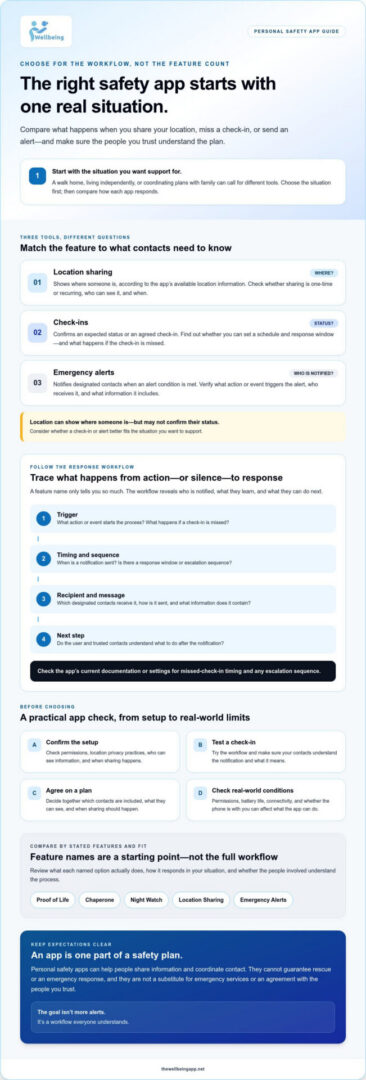
Use this checklist to test a personal safety app before choosing
A short test can show whether an app fits your routine and whether your contacts know how to respond. Use this sequence to make an informed choice about how to choose the right personal safety app:
- Define the need. Name the situation you want the app to support and the information you want to share.
- Inspect the workflow. Find out what starts a check-in or alert, who receives notifications, and what happens if a check-in is missed.
- Review privacy. Read the app’s data practices and check who can access location or status information.
- Test the setup. Confirm that the app works as expected on your device and that trusted contacts receive and understand a test notification.
- Decide together. Choose settings that suit the user’s needs and comfort, then revisit them if routines change.
What should you test during setup?
Start with a test check-in agreed on with a trusted contact. Confirm what notification arrives and whether its meaning is clear. Review device compatibility and check the app’s location, notification, and background activity permissions. Enable only the access needed for the features you plan to use. Consider whether the workflow depends on cellular or internet access, and check what to expect if the phone is offline.
If the app allows it, practice changing contacts, schedules, or sharing preferences. You’ll then know how to update the plan when a routine changes, rather than leaving old settings in place.
How can you make a shared safety plan comfortable?
Agree on who receives updates and what each person should do after an alert. Set expectations for check-in timing, and decide how the user can let contacts know about a changed plan. An alert is a prompt to communicate, not a guarantee of immediate help, so make sure everyone understands the app’s limits and any next steps you’ve agreed on.
Keep consent part of the conversation. The person using the app should be comfortable with the contacts and information shared, and should know how to adjust settings where the app allows. Revisit the plan when needs or routines change.
To compare features against your checklist, review The Wellbeing App’s safety features, then verify current device compatibility, permissions, and plan details before choosing.
Find the right fit: match your needs to The Wellbeing App features
The Wellbeing App brings together several safety features, but the right fit depends on the support you want and the workflow you’re comfortable sharing with trusted contacts. As you decide how to choose the right personal safety app, compare each feature with a specific need rather than assuming every option works the same way.
Which The Wellbeing App features align with your use case?
Proof of Life supports scheduled check-ins and automated notifications to designated contacts when a check-in is missed. If you want a routine that lets contacts know when an expected check-in hasn’t happened, verify how scheduling, the response window, and notifications work in the current app setup.
Location Sharing supports real-time location sharing. Consider whether that matches your plan, and confirm who can see the information and when sharing is active. The Wellbeing App also offers Chaperone, Night Watch, and Emergency Alerts. Their names alone don’t explain their exact behavior, so check the current feature descriptions and settings before deciding how they fit your use case. Don’t assume an alert feature contacts emergency services or guarantees a response.
For each feature, ask: What does the user do? What information is shared? Which contacts are notified, if any? What should those contacts understand or do next? Clear answers help you make a shared plan without relying on assumptions.
What to confirm before subscribing
The Wellbeing App offers monthly and annual subscriptions, with individual or family access to safety monitoring tools. That doesn’t establish which features are included in each option. Before subscribing, confirm current plan inclusions, feature availability, and compatibility with the intended user’s device. Check the permissions each feature needs, along with privacy settings and account access.
Include the designated contacts in setup. Confirm they’re willing to receive notifications, understand what each one means, and know how you’ve agreed to respond. If you plan to use a missed-check-in workflow, test it together and verify the current notification sequence and timing. Revisit the settings if routines, contacts, or comfort with sharing change.
Choosing together keeps the plan practical and respectful. Review The Wellbeing App’s available features, confirm the details that matter for your device and subscription, and decide with the user and trusted contacts which options belong in your shared safety plan.
Choose a safety plan you can use with confidence
The right choice is an app whose workflow fits a real need, whose privacy settings feel comfortable, and whose notifications your trusted contacts understand. Location visibility can offer context, check-ins confirm an expected status, and alerts notify designated contacts according to the app’s setup. Before deciding, test the process together and check device compatibility, permissions, and what happens if connectivity is interrupted.
That’s the practical answer to how to choose the right personal safety app: focus on what happens from setup to notification, not just how many features appear on a list. The Wellbeing App’s Proof of Life supports scheduled check-ins and automated notifications to designated contacts when a check-in is missed. Individual and family subscription access is available, and you should verify current feature inclusions before subscribing.
Explore The Wellbeing App’s safety features and choose a plan that fits your needs. Make the choice with the user and trusted contacts, and agree on a shared plan that supports connection while respecting comfort and independence.
Frequently Asked Questions
How do I choose the right personal safety app for my needs?
Choose an app by matching its workflow to one situation you want it to support. Decide whether you need scheduled check-ins, location sharing, or alerts, then confirm what starts a notification, who receives it, and what happens if a check-in is missed. Review privacy practices, device compatibility, and required permissions. Test the setup with trusted contacts, and choose settings the person using the app is comfortable with.
Is location sharing enough to keep someone safe?
Not necessarily. Location sharing can show a person’s or phone’s whereabouts, which may help during an agreed journey, but it doesn’t by itself confirm the person’s status or prompt a contact to respond. A scheduled check-in may communicate whether someone has confirmed their expected status, while an alert may notify contacts under specific conditions. Consider the situation, agree on what contacts should do, and don’t treat any feature as a guarantee of help.
Can a personal safety app alert contacts if I miss a check-in?
Some apps can automatically notify designated contacts when a scheduled check-in is missed, but the trigger and notification sequence vary. Check who sets the schedule and response window, which contacts are notified, and how the alert is delivered. The Wellbeing App’s Proof of Life supports scheduled check-ins and automated notifications to designated contacts when a check-in is missed. Verify current settings and exact timing, then test the process with your contacts.
What should I check about privacy before using a safety app?
Read the app’s stated data practices and review who can access your account, location, and status information. Check whether sharing is one-time or ongoing, who can view it, and how to stop or change it. On your phone, review location, notification, and background activity permissions, enabling only what the features you choose require. Discuss sharing with the person using the app so the settings feel clear and comfortable to everyone involved.
Do personal safety apps work without cellular service or internet?
It depends on the app, device, and feature. Location updates and notifications may require an internet or cellular connection, and a phone that’s out of power or has restricted permissions may not send information as expected. Don’t assume an alert will be delivered later if the device is offline. Check the app’s documentation for its offline behavior, then discuss with contacts what to do if a check-in or expected update doesn’t arrive.
Can a safety app contact emergency services automatically?
Don’t assume it can. Some apps may offer emergency-service contact features, while others notify only selected personal contacts; the app’s description and settings should state what happens. The Wellbeing App offers Emergency Alerts, and its available information describes notifications to designated contacts, not automatic emergency-service dispatch. Confirm the exact recipients and response process before relying on any alert. An app can support communication, but it doesn’t guarantee emergency assistance.
How do I test a personal safety app before relying on it?
Set up a test with a trusted contact and follow the workflow you plan to use. Complete a check-in, confirm what notification arrives, and make sure the contact understands its meaning. Review device compatibility, permissions, account access, and connectivity requirements. If the app supports location sharing, check who can view it and when sharing ends. Practice changing contacts or schedules if those controls are available, and revisit the plan when routines change.